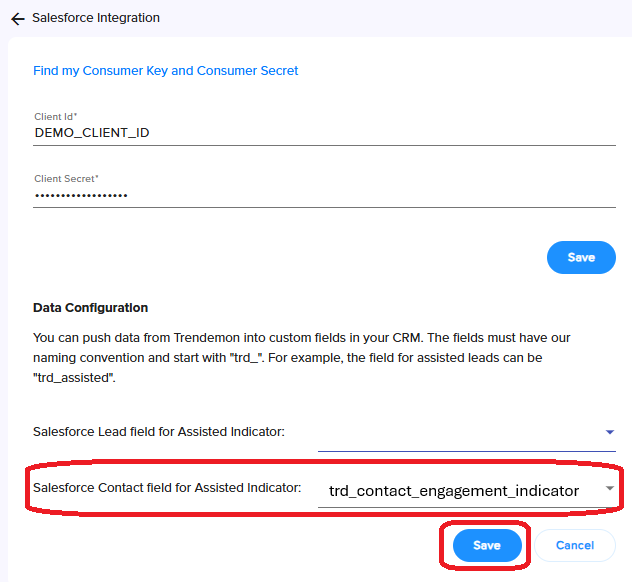
Trendemon allows you to push engagement data with personalization units directly into Salesforce. This enables you to identify leads and contacts who interacted with Trendemon units and use that data to trigger campaigns, workflows, segmentations and other automations within Salesforce.
Step 1: Create Fields in Salesforce
To capture engagement data, you’ll need to create a dedicated field in Salesforce. Since Leads and Contacts are separate objects, you'll need to create two separate fields inside Salesforce: one for leads and another one for contacts.
These fields will store a binary value (checkbox) indicating whether a person has engaged with a Trendemon personalization unit.
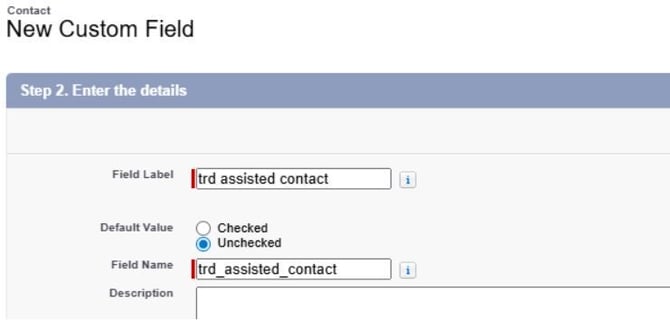
It's essential to follow our naming convention by starting each field name with “trd_” prefix to prevent any potential conflicts with your existing Salesforce fields.
How to create the field:
Go to Object Manager in Salesforce, select the relevant object (Lead or Contact) and click on it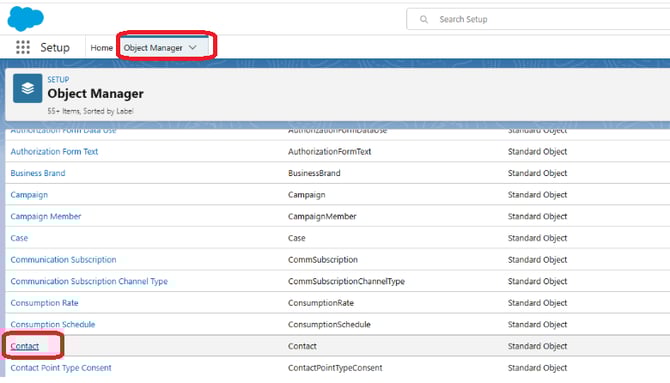
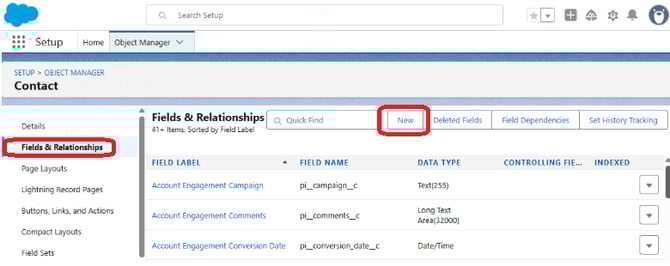
Navigate to Fields & Relationships, and click "New"
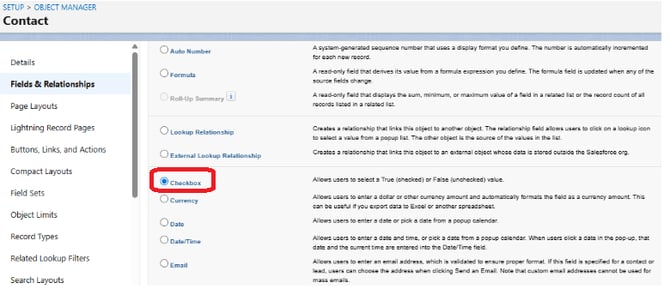
Choose Checkbox as the field type
Complete the setup and save the field. The field name MUST start with a “trd_” prefix to prevent any potential conflicts with your existing Salesforce fields.
Step 2: Configure the Field in Trendemon
Once the fields are created in Salesforce, you’ll need to map them inside Trendemon.
How to configure:
In Trendemon, navigate to: Configure → Account Setup → Integrations, click the Salesforce gear icon, and click on “Configure”
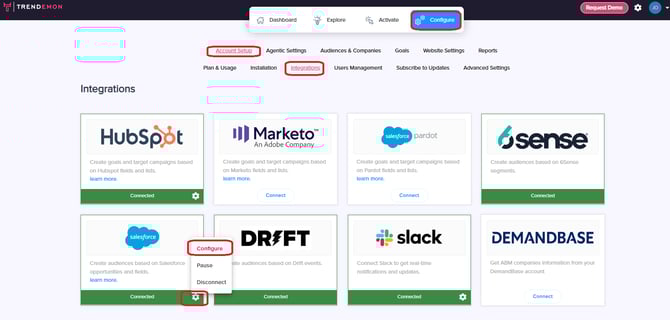
Under the Data Configuration section, Select the field you created in Salesforce under “Salesforce Lead field for Assisted Indicator” or “Salesforce Contact field for Assisted Indicator”, and then click “Save”